Starting your first game in Game Maker can feel a bit overwhelming. There are a lot of features and options, and it’s easy to get lost. I’ve been there myself, poking around menus and trying to figure out why something isn’t working. But don’t worry—if you take things step by step, you’ll be surprised how much you can do. Here are some simple tips that will make your first project go a lot smoother.
Key Takeaways
- Always check the Game Maker documentation before searching elsewhere—most answers are right there.
- Don’t just copy code from tutorials; try to understand what each line does so you can fix problems later.
- Use Creation Code in the Room Editor to set up different values for each object instance, like health or speed.
- Get comfortable with arrays and data structures—they help keep your game organized and running smoothly.
- Start small and keep your first project simple; you’ll learn more by finishing a basic game than by starting something too big.
01. GameMaker Documentation
Getting started with GameMaker can feel a little overwhelming, especially with all the features and tools it offers. Before Googling a problem or asking for help, always take time to read through the official documentation. GameMaker’s documentation is packed with explanations, examples, and useful tips that can help you move past roadblocks and learn how the engine thinks.
Here’s why making friends with the documentation is a great first step:
- It covers all features, properties, and functions, including subtle details not found in most tutorials.
- Updates and changes to GameMaker are reflected in the docs, making it a reliable source.
- Examples and code snippets can help you understand how to use commands and structures.
If you’re new to GameMaker, getting used to the docs can seem tricky at first. Here are a few tips to help you make the most out of them:
- Use the search feature to quickly find commands or ideas.
- When you hit an error, look up the error or related function in the docs before searching elsewhere.
- Follow the links in each section – related topics and further reading are usually recommended at the end.
Spending a few minutes in the documentation when you’re stuck can often save hours of frustration. It might take practice, but developing this habit will definitely speed up your learning over time.
In short, the documentation isn’t just an instruction manual—it’s your day-to-day reference and problem solver. Regularly checking it will help you build a much better understanding of GameMaker and stop you from getting lost in the details.
02. Creation Code
Creation Code in GameMaker gives you a way to adjust the properties of objects when you place them in a room. It’s easy to overlook this feature, but learning how to use Creation Code helps you make each enemy, obstacle, or collectible unique without making extra objects for every variation. This feature lets you customize instance-specific details directly from the room editor.
Here’s what you can do with Creation Code:
- Set different values for variables, like health or speed, for each instance of an object.
- Change the position, scale, or rotation of any object right where you place it in the room.
- Assign unique behaviors or scripts that only run for that particular instance.
When you’re working on a game, it feels tempting at first to make new object types just because you want small changes, but Creation Code solves that problem much faster and keeps things organized. Using it well means less clutter and less confusion in your resource tree.
With Creation Code, you can set up all the little variations and tweaks your game needs, right at the room level, so later changes are easier to handle and your codebase stays clean.
03. Room Editor
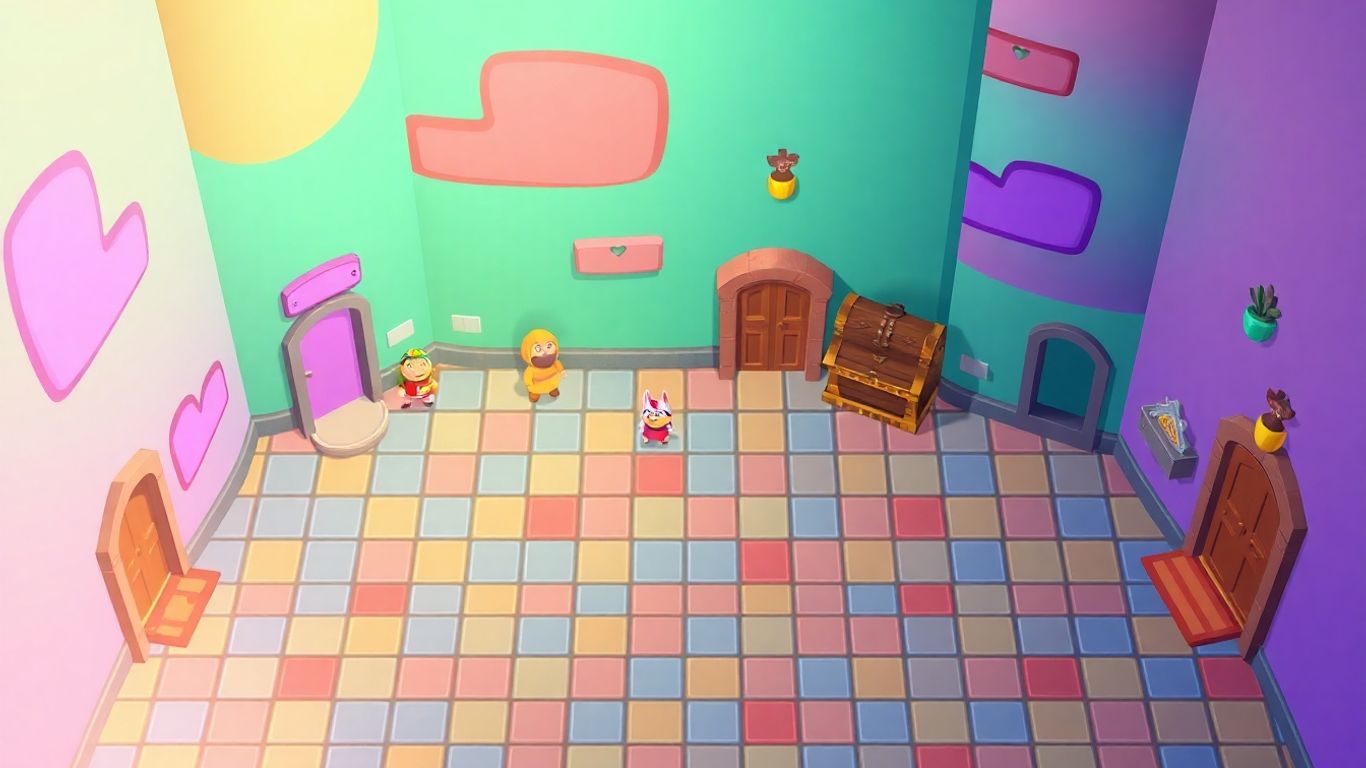
GameMaker’s Room Editor is a central tool for structuring your entire game. This is where you design the layout of your levels, organize game objects, and set up the background and viewports. Spending time to master the Room Editor early will pay off as your project gets more complex.
Here are a few key points to keep in mind:
- Lay out your objects by simply dragging and dropping them into the room. You can resize, rotate, and fine-tune their position to match your level design ideas.
- Set up backgrounds and tilesets right inside the Room Editor, letting you see how your world will look while you place objects.
- Use layers to organize different elements like backgrounds, instances, or even UI, so that everything stays tidy and easy to manage.
- Configure room properties like size, speed, and view settings so your game behaves the way you expect.
- You can assign unique settings or creation code to each object instance you place, allowing for unique behaviors or values in different spots.
Getting comfortable with the Room Editor can make building and tweaking your levels a lot more efficient, saving time in the long run and making the process much less stressful.
Start simple and focus on practicing with small test rooms. Once you’re used to the core controls and workflow, you’ll be able to design more detailed and interesting environments with confidence.
04. Local Variables
Local variables are a simple but powerful way to make your GameMaker code both readable and efficient. By containing their use to a single event, script, or function, local variables reduce clutter and help avoid confusing bugs.
Here’s what you should know about using local variables in your projects:
- Local variables are declared with the
varkeyword. For example:var speed = 5; - They only exist during the event or function where they’re defined. Once the event is over, they’re erased automatically.
- Using local variables means the same names can be reused in different scripts without issues.
- Local variables are faster to access than instance or global variables, which can lead to better performance, especially when used inside loops or frequently called code.
- Assigning repeated calculations or function calls to a local variable cuts down on unnecessary processing and keeps your lines neat. For instance, instead of calculating the player’s direction multiple times in the same script, store it in a variable and reuse it.
A common workflow might look something like this:
- Decide what temporary information you need—like a distance, direction, or speed.
- Create a local variable using
varand assign it the needed value. - Use the variable in all following lines that need that value within the same event or function.
Keeping calculations and repeated function calls in local variables is a good habit—it improves code readability and helps prevent mistakes in large projects.
In summary, use local variables for any value that doesn’t need to persist outside the current script or event. This will make both your learning process and debugging much easier as your game project grows.
05. Data Structures
When building your game in GameMaker, understanding data structures will help you organize, store, and manipulate information efficiently. Data structures are special tools you can use to keep track of lists, maps, queues, stacks, and grids in your game. They go beyond what regular variables and arrays can do, and are especially handy when you need complex behaviors like leaderboards or inventory systems.
Here’s a quick look at the most common GameMaker data structures and when to use each:
| Data Structure | Best Use Cases |
|---|---|
| DS List | Simple lists, menus |
| DS Map | Key-value pairs, stats |
| DS Grid | Tilemaps, level data |
| DS Stack | Undo/redo features |
| DS Queue | Task lists, turn order |
Some key points to remember about data structures in GameMaker:
- Creating any data structure (like with
ds_list_create()) allocates it in memory and gives you a pointer, not the actual data. The variable just points to that structure in memory. - Always destroy your data structures (using functions like
ds_list_destroy(list)) when you’re done with them. If you don’t, your game may slowly eat up more and more memory, leading to crashes or slowdowns. - DS Lists and DS Maps were very popular, but many beginners now use arrays and structs for similar tasks. Still, DS Grids, Stacks, and Queues offer unique benefits for certain game features.
Not cleaning up data structures is one of the most common mistakes beginners make, and it’s easy to overlook because your game might run fine—right up until it doesn’t.
Experiment with these structures. Figure out what feels best for your needs. Having this toolbox in your mind makes it easier to stay organized and solve tricky data problems later in your project.
06. Arrays
Arrays are one of the most straightforward and practical tools you have in GameMaker for keeping track of groups of values. Whether you’re storing high scores, player inventory, or the layout of a level, arrays can do the job with less overhead than data structures.
One important thing to remember is that arrays are fast, easy to use, and require less memory than some other ways of managing lots of related values. Here are a few tips to using arrays efficiently in your first project:
- Always decide the maximum size you’ll need for your array and create it upfront. For example, if your level needs to remember 100 tiles, set your array up as
array = array_create(100, 0);. This allocates space in one go, speeding things up behind the scenes. - GameMaker will fill your new array with the value you pick, so you avoid any surprises with what’s inside. Most people use 0 for numbers or "" for strings.
- To free memory when you no longer need an array, simply set its variable to
undefined. GameMaker’s memory cleanup will take care of the rest for you.
Here’s a basic overview of what arrays are handy for:
- Storing related items together, like enemy positions or player inventory.
- Looping through data efficiently with a
fororwhileloop. - Keeping code tidy when you need to process many similar items at once.
Arrays in GameMaker are your go-to for handling lists or groups of related data, saving you both memory and lines of code compared to other options. If your needs are straightforward, reach for an array first.
07. Collisions
Handling collisions correctly is the difference between a smooth, playable game and a frustrating mess. In GameMaker, collision detection refers to the ways your objects interact when they touch or overlap. Beginners often overlook just how many options exist and how each comes with its own strengths and performance costs.
Here are practical steps to get started with collisions:
- Pick the Right Collision Function: Choose from functions like place_meeting(), collision_rectangle(), collision_line(), or instance_place(). The function place_meeting() is fast and simple for checking if two objects will touch next step.
- Use Bounding Box Collisions When Possible: For simple shapes, default bounding box checks are usually enough and much faster than per-pixel or precise checks, which slow things down.
- Stick With One Collision System: Try not to mix too many detection methods in the same project—choose the simplest method that fits your gameplay needs.
- Think About Your Room Layout: If your game is grid-based (like a tile map), consider coding your own 2D array or using DS Grids for grid-based collision. This is much faster if all your walls and objects align to a grid.
- Optimize for Performance: Avoid checking collisions with every object every frame. Only check what’s necessary, and filter out objects that are far away or not relevant.
Collisions make or break how your game feels to play. Every movement and action depends on reliable collision checks—start simple, and only add precise or complex detection if you truly need it.
Example:
if (place_meeting(x + 2, y, obj_wall)) {
    // Don't move further!
}
This snippet checks if an object would hit a wall two pixels away before it actually moves there. These tiny checks, done at the right time with the right tool, keep your game feeling just right.
08. Texture Swaps
Texture swaps happen every time GameMaker needs to switch from drawing images on one texture page to another. Too many texture swaps can make the game run slower, particularly on low-end devices or in games with a lot of graphics.
Here are a few things you can do to keep the number of texture swaps as low as possible:
- Group similar or related sprites on the same texture page using the Texture Group Editor.
- Place menu graphics and main gameplay graphics on separate pages to avoid unnecessary swapping.
- Be careful with the ‘Separate Texture Page’ setting—only use it if absolutely needed.
Texture swaps aren’t always a problem for small games or on desktop platforms, but if you notice your game slowing down or you’re developing for mobile, it’s worth keeping an eye on. Use GameMaker’s debug overlay to monitor how many texture swaps happen per frame. If the value gets high and your FPS drops, revisit how your assets are organized.
Organizing your sprites on texture pages may take some effort at first, but it’s one of those things that can save you headaches as your project grows and becomes more complex.
09. Particles

Particles can bring your game to life with effects like smoke, fire, rain, and other visual features that make your project feel lively and polished. GameMaker’s built-in particle system is a fast way to add dynamic elements without much setup. However, there are a few important points to remember when you’re getting started:
- Use simple shapes or animated sprites for your particles to keep things running smoothly, especially on older hardware.
- Try to avoid heavy blending modes like additive or complex color blends for large numbers of particles, as these slow down performance, particularly on mobile devices.
- Set up a single particle system and emitter instead of creating lots of separate systems for different effects. This can save memory and simplify management.
- Always remember that a variable pointing to a particle system is just a reference or pointer, not a copy. Destroy it properly when you’re done to avoid memory leaks.
When experimenting with particles, try changing just one thing at a time—like the lifetime, speed, or direction—so you can see exactly how those tweaks affect the look and performance.
GameMaker lets you animate particle sprites, which works well for things like fading effects or smooth color changes, without extra performance costs. If you notice your game feels slower, start by reducing the number of particles or simplifying their appearance. With a little patience, you’ll find a balance that looks great and runs well.
10. Surfaces
Surfaces are a powerful feature in GameMaker, allowing you to draw graphics off-screen and later place them anywhere you want. They come in handy for things like making dynamic backgrounds, reflections, or special effects. But as a beginner, you’ll find that surfaces need some careful handling to avoid crashes or glitches.
Here are some important points to keep in mind:
- When you create a surface, always clear it right away. Memory blocks might still have leftover images from old surfaces, causing strange visuals if you don’t clear them first.
- Use
surface_exists()regularly before drawing to a surface or accessing it. If the surface gets lost (like when the game window resizes or loses focus), trying to use it will lead to errors. - For 2D games, consider turning off the depth buffer for surfaces to save memory using
surface_depth_disable(). Most surfaces in 2D games don’t need depth sorting, so this is a simple optimization. - Don’t forget to free up surfaces when you’re done. Use
surface_free(); otherwise, you could run out of memory over time.
Many tricky bugs with surfaces come from forgetting to check if they exist or from not freeing up memory. Make it a habit to always double-check surfaces just like you would with files or data lists.
You’ll see huge benefits by using surfaces well. Whether you want to make fancy transitions or just draw a cool HUD, learning how surfaces work will give you a lot more flexibility in GameMaker.
Wrapping Up: Your First Steps with Game Maker
Getting started with Game Maker can feel like a big task, but it’s really about taking one step at a time. The tips we’ve covered are meant to help you avoid common mistakes and keep things simple as you learn. Remember, it’s okay if your first game isn’t perfect. Focus on understanding what you’re doing, try things out, and don’t be afraid to make changes as you go. Use the resources available, ask questions when you get stuck, and most importantly, have fun with the process. Every project you finish will teach you something new, and before you know it, you’ll be ready to tackle bigger ideas. Good luck, and happy game making!
Frequently Asked Questions
What is GameMaker and why should I use it to make my first game?
GameMaker is a program that lets you make video games without needing to know a lot about coding. It’s great for beginners because it has simple tools and lots of helpful guides. You can make all kinds of games with it, from platformers to puzzles.
How important is it to read the GameMaker documentation?
Reading the GameMaker documentation is super helpful. The docs explain how everything works, show you examples, and can answer a lot of your questions. Before you look for help somewhere else, try checking the docs first.
Should I copy code from tutorials when I don’t understand it?
It’s better to try and understand the code before you use it. Copying code without knowing what it does can make things confusing later. Take time to read and learn, so you can fix problems and make your own changes.
How can I give different objects their own unique settings in GameMaker?
You can use the Creation Code in the Room Editor to give each object its own settings, like different health points or speed. This way, you don’t have to make a new object for every change—you just adjust the code for each one.
What are arrays and data structures, and why do I need them?
Arrays and data structures are ways to organize and store information in your game, like scores or lists of enemies. They help keep your code neat and make it easier to manage lots of things at once.
What should I do if my game feels slow or laggy in GameMaker?
If your game is running slow, check if you have too many things happening at once, like lots of particles or big images. Try to keep things simple, and look for ways to make your code run faster, like using fewer texture swaps or cleaning up unused objects.