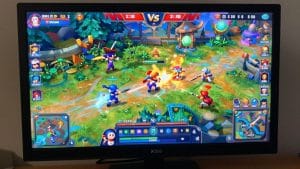
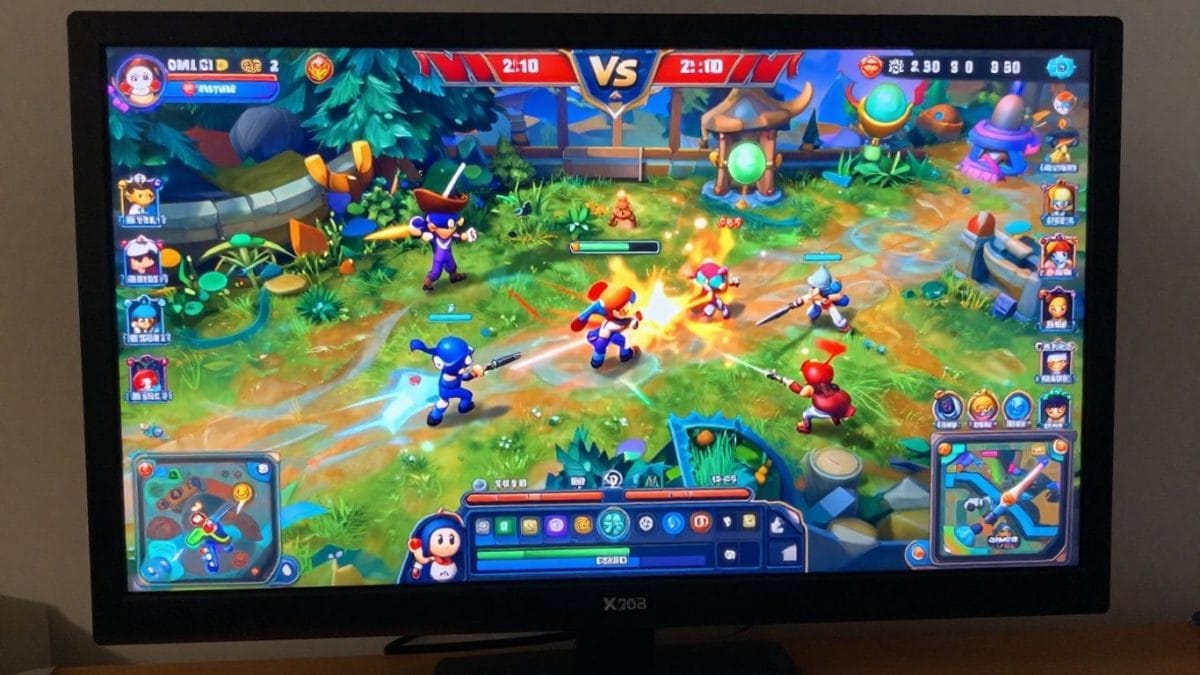
Ever wished you could play your favorite mobile games on your PC? Maybe you’re tired of squinting at a small screen or fumbling with touch controls during intense gaming moments. Well, good news! The Google Play Games emulator on PC is here to change that. It lets you bring those beloved titles to your computer, offering a bigger display and the precision of a mouse and keyboard. Let’s explore how this works and what it means for your gaming.
Key Takeaways
- The Google Play Games emulator on PC lets you play your favorite mobile games on a larger computer screen using a mouse and keyboard.
- It offers a way to get a more comfortable and precise gaming experience compared to playing on a phone.
- This tool is designed to work with your Google account, allowing for progress syncing across devices.
- While there are official Google tools, other emulators and screen mirroring solutions also exist as alternatives.
- Developers can use a special emulator to test and prepare their games for the Google Play Games on PC platform.
Understanding the Google Play Games Emulator on PC
What is the Google Play Games Emulator?
So, what exactly is this Google Play Games emulator for PC? Think of it as a special version of the Google Play Games app, but built specifically for your computer. It’s not just about running Android apps on a desktop; it’s a tool designed to help developers build, test, and refine their mobile games so they can be played smoothly on a PC. This means you can get a feel for how your favorite mobile titles will perform on a larger screen with keyboard and mouse controls before they’re even fully released to the public.
Benefits of Using the Emulator
Why would someone want to use this emulator? For starters, it bridges the gap between mobile and PC gaming. You get to experience games with potentially better graphics and performance, thanks to your computer’s hardware. It also means you can play for longer sessions without worrying about your phone battery dying. Plus, it opens up possibilities for new control schemes, making complex games easier to manage.
- Enhanced Performance: Utilize your PC’s processing power for smoother gameplay.
- Larger Display: Enjoy games on a bigger screen for a more immersive view.
- Comfortable Controls: Adapt to keyboard and mouse inputs for precise actions.
- Extended Playtime: Game without the battery limitations of mobile devices.
Key Features for Enhanced Gameplay
This emulator comes packed with features aimed at making your gaming experience better. It’s built with developers in mind, but players can certainly benefit from the results. Features like optimized input handling and graphical improvements are designed to make mobile games feel right at home on a PC. The goal is to make playing your mobile favorites on PC feel as natural and enjoyable as playing them on your phone, if not more so.
The development of this emulator focuses on creating a stable and performant environment. It’s about ensuring that games run well, look good, and are easy to control on a desktop setup. This means less frustration and more fun for everyone involved.
Here’s a quick look at what makes it stand out:
- Optimized Input: Designed to translate touch controls into keyboard and mouse actions effectively.
- Graphical Adjustments: Allows for tweaking settings to match PC display capabilities.
- Cross-Device Sync: Aims to keep your game progress consistent across your phone and PC.
Getting Started with Google Play Games on PC
System Requirements for Installation
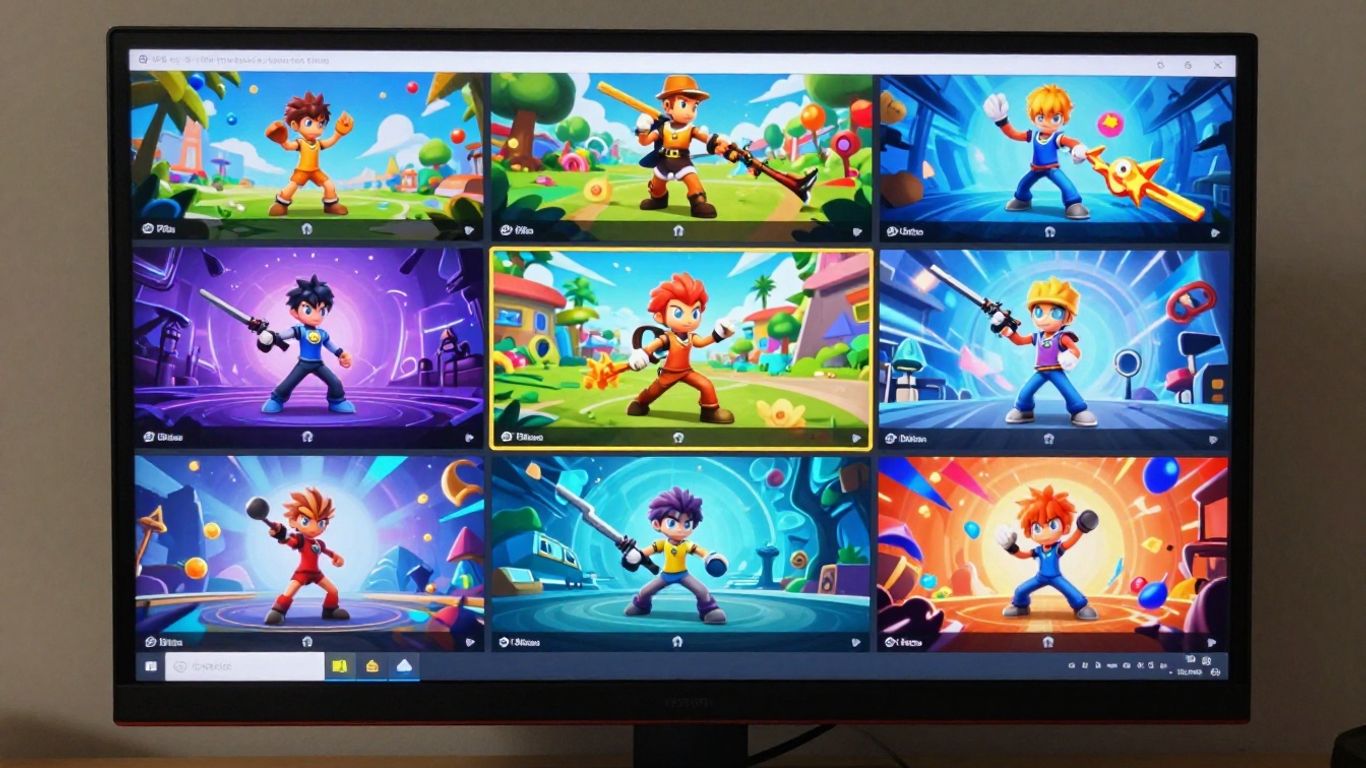
Before you can start playing your favorite mobile games on your computer, it’s important to make sure your system is ready. Google Play Games on PC has specific requirements to ensure a smooth and stable experience. Meeting these will help avoid performance issues and make sure your games run as intended.
Here’s a quick look at what you’ll generally need:
- Operating System: A recent version of Windows (like Windows 10 or 11).
- Processor: A multi-core processor is recommended, typically an Intel or AMD CPU.
- RAM: A minimum amount of RAM is needed, usually around 8GB, though more is always better for demanding games.
- Storage: Sufficient free space on your hard drive or SSD for the emulator and the games you plan to install.
- Graphics: A graphics card that supports certain hardware features, like GPU acceleration.
It’s always a good idea to check the official Google Play Games website for the most up-to-date and detailed system specifications, as these can sometimes be adjusted.
Downloading and Installing the Emulator
Getting the Google Play Games emulator onto your PC is a straightforward process. The first step is to visit the official Google Play Games website. Once you’re there, you should find a clear download button. Clicking this will start the download of the installer file.
After the download is complete, locate the file on your computer and double-click it to begin the installation. The installer will guide you through the process, which usually involves agreeing to the terms of service and selecting an installation location. Most users can stick with the default settings. The installation itself is generally quick, and once it’s finished, you’ll be ready to move on to the next step.
Initial Setup and Configuration
Once the Google Play Games emulator is installed, you’ll need to perform a brief initial setup. When you launch the application for the first time, you’ll likely be prompted to sign in with your Google account. This is the same account you use for the Google Play Store on your mobile devices. Using the same account is key to accessing your existing game library and ensuring your progress is synced correctly.
After signing in, the emulator might perform a quick optimization or download of necessary components. You may also find some basic settings you can adjust, such as graphics preferences or storage locations for games. While the emulator is designed to work well with default settings, exploring these options can sometimes help fine-tune performance for specific games or your system configuration. It’s a good idea to familiarize yourself with these initial settings before you start downloading and playing games.
Playing Your Favorite Mobile Titles
Accessing the Google Play Store
Once the Google Play Games emulator is set up on your PC, the next logical step is to get your games. The emulator provides direct access to the Google Play Store, just like you’d find on your Android device. This means you can browse, search for, and download your favorite mobile titles directly within the emulator’s interface. It’s designed to feel familiar, so finding and installing games should be a straightforward process. Think of it as having a digital storefront for all your mobile games, conveniently located on your computer.
Installing and Launching Games
Installing a game is as simple as clicking the ‘Install’ button in the Play Store, much like you would on your phone. Once downloaded, the game will appear in your emulator’s library. To launch it, just click on its icon. The emulator handles the rest, loading the game into its virtual Android environment. You’ll notice that games often load quite quickly, especially compared to running them on a less powerful mobile device. This is one of the perks of using PC hardware for your gaming.
Optimizing Game Performance
While the emulator generally provides a good experience out of the box, there are ways to fine-tune performance. Most emulators allow you to adjust settings related to graphics, CPU, and RAM allocation. For instance, you might be able to switch between different graphics rendering modes or allocate more system resources to the emulator if your PC has them to spare. It’s a good idea to check the emulator’s settings menu for options that can improve frame rates or reduce loading times.
Playing games on a larger screen with precise controls can really change how you experience them. It’s not just about convenience; it can actually make games feel more immersive and responsive, especially those that require quick reflexes or detailed input.
Here are some general tips for getting the best performance:
- Close Unnecessary Background Applications: Free up your PC’s resources by closing any programs you aren’t actively using.
- Update Graphics Drivers: Ensure your PC’s graphics drivers are up-to-date. This can often lead to significant performance improvements in games.
- Adjust In-Emulator Settings: Experiment with the graphics rendering mode (e.g., DirectX or OpenGL) and resolution settings within the emulator. Sometimes, switching these can make a noticeable difference.
Leveraging Emulator Features for Superior Control
Playing your favorite mobile games on a PC opens up a whole new world of control and precision. The Google Play Games emulator on PC isn’t just about a bigger screen; it’s about transforming how you interact with your games. The real magic happens when you start using the built-in features designed to give you the upper hand.
Keyboard and Mouse Mapping
One of the most significant advantages is the ability to map in-game actions to your keyboard and mouse. Think about those fast-paced shooters or complex strategy games where split-second decisions matter. Instead of fumbling with touch controls, you can assign actions like ‘fire,’ ‘aim,’ ‘jump,’ or ‘use ability’ to specific keys. This makes gameplay feel more responsive and intuitive, much like traditional PC gaming. The emulator typically provides a visual interface where you can drag and drop actions onto your preferred keys, making it easy to set up.
Customizable Game Controls
Beyond simple key mapping, many emulators allow for deeper customization. You can often adjust sensitivity settings for mouse movements, create macros for complex command sequences, or even set up different control profiles for different games. This level of personalization means you can tailor the experience precisely to your playstyle and the demands of each game. For instance, a racing game might benefit from analog-like keyboard inputs, while a fighting game might need rapid button presses.
Here’s a quick look at what you can typically customize:
- Key Bindings: Assign any in-game action to a keyboard key or mouse button.
- Mouse Sensitivity: Adjust how quickly your cursor moves or how your aim tracks.
- Macros: Record and play back sequences of actions with a single press.
- Control Schemes: Save and load different layouts for various game genres.
Seamless Cross-Device Progress Sync
While not strictly a control feature, progress synchronization is vital for a smooth experience. The Google Play Games emulator aims to connect with your Google account, allowing your game progress to sync across your PC and mobile devices. This means you can start a game on your phone during your commute and pick up right where you left off on your PC at home, without losing any progress. It bridges the gap between your devices, offering flexibility in how and where you play.
The ability to sync progress across devices is a game-changer. It means your gaming sessions aren’t confined to a single platform, providing unparalleled freedom to play whenever and wherever you choose, without the frustration of starting over.
Exploring Alternatives and Complementary Tools
While Google Play Games on PC offers a direct route to playing your favorite mobile titles, it’s not the only game in town. Sometimes, you might need a different approach, or perhaps you’re looking for tools that work alongside the official emulator. Let’s look at some other options available for enjoying Android games on your computer.
Dedicated Android Emulators
Before Google Play Games made its official debut on PC, dedicated Android emulators were the primary way to play mobile games on a larger screen. These programs create a virtual Android environment on your computer, allowing you to install and run apps and games just as you would on a phone or tablet.
Some popular choices include:
- BlueStacks: This is a well-known emulator that connects directly to the Google Play Store, simplifying game installation. It also supports cloud saves and multitasking.
- Andy Android Emulator: Andy offers features like cloud save and camera integration. It’s compatible with older Windows versions, though it might require additional software like VirtualBox.
- YouWave: Known for its speed, YouWave also provides access to the Google Play Store and can sync apps to your mobile device. It’s a paid option with some limitations.
- Droid4x: This emulator focuses on high performance and offers robust keyboard and mouse mapping for a better gaming experience.
These emulators often provide a wide range of customization options, including the ability to adjust performance settings, map controls, and even run multiple instances of Android simultaneously.
Screen Mirroring Solutions
If your goal is simply to play games on a bigger screen without needing to install them on your PC, screen mirroring is a great alternative. These tools project your phone’s screen onto your computer, allowing you to interact with your games using your PC’s peripherals.
Key benefits include:
- No Installation Required: Games run directly on your phone, so you don’t need to download or install them on your PC.
- Familiar Interface: You’re still using your phone’s operating system and apps.
- PC Controls: Many mirroring apps allow you to map your keyboard and mouse to your phone’s touch controls, giving you more precise input.
These solutions are particularly useful if you have a high-end phone but a less powerful PC, as the heavy lifting is done by your mobile device.
While dedicated emulators create a full Android environment on your PC, screen mirroring simply displays your phone’s screen on your computer. The choice between them often comes down to whether you want to run games on your PC or simply view and control them from your PC.
Choosing the Right Solution for Your Needs
When deciding between Google Play Games on PC, dedicated emulators, or screen mirroring, consider what’s most important to you:
- Simplicity and Official Support: Google Play Games on PC is the most straightforward and officially supported method for playing select games.
- Game Compatibility and Features: Dedicated emulators might offer broader game compatibility and more advanced customization options, especially for older or less common titles.
- Resource Usage: Screen mirroring is ideal if your PC isn’t powerful enough to run an emulator smoothly, as it relies on your phone’s hardware.
- Control Precision: Both Google Play Games and dedicated emulators excel at providing keyboard and mouse mapping for superior control compared to touchscreens.
Developer Insights into Google Play Games
The Developer Emulator Explained
For those building games, Google offers a special version of the emulator. It’s not for playing games, but for testing and building them. You can load your game directly onto it, maybe using a command line tool or through Android Studio. This lets you tweak graphics and other settings to see how your game will work on different computer setups. It’s a tool to help developers catch problems before players do.
Playability Requirements for PC
To make sure games feel right on a computer, Google has some guidelines. Your game needs to work with a mouse and keyboard, even if it’s just a basic setup. It shouldn’t get stuck because of things like permission pop-ups that don’t work on PC. Also, games should ideally use modern graphics technology like OpenGL ES or Vulkan. This helps games run better and look sharper.
Here’s a quick look at some key points:
- Input Support: Must work with mouse and keyboard.
- API Compatibility: Avoids mobile-specific APIs that don’t translate to PC.
- Graphics: Supports modern graphics standards.
- Performance: Aims for smooth gameplay on typical PC hardware.
Developers are encouraged to include x86-64 binaries. This lets games run directly on most PCs, making them faster and more responsive for players. It also means more people can play your game, not just those with specific hardware.
Enhancing Player Reach and Engagement
Getting your game on Google Play Games for PC can open up your player base. It means people who love your mobile game can now play it on a bigger screen with more control options. Google also looks for games that offer a good player experience, like having clear goals and rewards. They even suggest having a certain number of achievements to keep players interested over time. This focus on player experience helps games become more popular and keeps players coming back for more.
Wrapping Up Your Mobile Gaming Experience on PC
So, there you have it. Bringing your favorite mobile games to your PC opens up a whole new way to play. Whether you’re using a dedicated emulator or a screen mirroring tool, the benefits are clear: bigger screens, better controls, and fewer interruptions. It’s a simple way to get more out of the games you already love. Give it a try and see how it changes your gaming sessions.
Frequently Asked Questions
What exactly is Google Play Games on PC?
Think of Google Play Games on PC as a special program that lets you play your favorite Android games right on your computer. It’s like bringing your phone’s games to your big computer screen, but with the added bonus of using your keyboard and mouse for better control.
Do I have to pay to use Google Play Games on PC?
Nope, you don’t have to spend any money to download and use Google Play Games on PC. It’s a free service from Google, so you can jump right into playing your games without any cost.
What kind of computers can run Google Play Games?
Google Play Games on PC works on computers running Windows 10 or Windows 11. So, if your computer has one of those operating systems, you should be good to go!
Can I play all my Android games on PC with this?
Not every single game from the Google Play Store is available on PC yet, but a lot of popular ones are! Google is adding more games all the time. You can check the Play Store within the emulator to see what’s ready to play on your computer.
What’s the difference between Google Play Games and other emulators like BlueStacks?
Google Play Games on PC is an official tool made by Google, focusing specifically on playing games. Other emulators like BlueStacks can run a wider range of Android apps, not just games, and they create a more complete virtual Android device on your PC. Google Play Games is generally simpler and more optimized just for gaming.
How does my game progress carry over between my phone and PC?
It’s pretty neat! Many games use your Google account to save your progress. When you log in with the same account on both your phone and the PC emulator, your game saves will sync up automatically, letting you pick up right where you left off on either device.