
So, you’ve got kids playing games on Epic Games, huh? It can be a bit much to keep track of everything, especially with all the different settings and accounts. This guide is here to help break down how Epic Games handles things like account linking and those all-important parental controls. We’ll look at how to set things up so everyone stays safe and has a good time playing.
Key Takeaways
- Epic Games uses ‘Limited’ or ‘Cabined’ accounts for younger players, which puts some features on hold until parental consent is given.
- Parents can set up a PIN to manage spending, social interactions, and what age-appropriate content kids can access.
- Linking other accounts to Epic Games requires parental approval to keep kids’ information safe.
- Using the parental controls built into gaming consoles like Xbox or PlayStation adds another layer of protection on top of Epic’s settings.
- It’s a good idea to check in on how much your child is playing and talk to them about online safety, adjusting settings as needed.
Understanding Epic Games Restrictions
Epic Games has put systems in place to help manage how younger players interact with its platform and games. These systems are designed with safety and age-appropriateness in mind, especially for players who haven’t reached the age of digital consent in their region. When an account is identified as being for a younger player, it might automatically be set up as a ‘Limited Account’. This isn’t about blocking fun entirely, but rather about creating a more controlled environment until parental consent is given.
The Role of Limited and Cabined Accounts
A Limited Account is the default setting for players under a certain age, typically 13 or the local age of digital consent. When an account is limited, Epic Games will contact the parent or guardian via email to get their permission. While waiting for this consent, players can still access games they already own or have earned, like those in Fortnite or Rocket League. However, certain features are restricted.
Here’s what a Limited Account typically cannot do:
- Communicate with others using voice or free text chat.
- Make purchases using real money.
- Download games not developed by Epic.
- Receive personalized recommendations or marketing emails.
- Link to external social media or streaming services.
Once parental consent is provided through the Epic Games Parental Controls or by completing the setup process when prompted, some of these restrictions can be lifted based on the settings chosen by the parent. It’s also important to know that players automatically gain access to all features once they turn 13, so ongoing monitoring is advised.
These account limitations are a proactive step to protect younger users. They ensure that access to communication, spending, and external connections is managed by a guardian until the player is deemed ready.
Navigating Age-Appropriate Content Access
Epic Games allows parents to set restrictions based on game ratings. This means you can decide the highest age rating of games your child can access or download from the Epic Games Store without needing your approval. For games within the Epic ecosystem, like Fortnite, experiences are also rated, and you can set a maximum rating your child can engage with. If a child tries to access content above the set limit, a parental PIN will be required. This helps prevent exposure to mature themes or gameplay that might not be suitable for their age group.
Parental Consent for Feature Unlocks
Parental consent is the key to unlocking many of the features that are restricted on Limited Accounts. When Epic Games reaches out to a parent or guardian, providing that consent is a straightforward process. This usually involves confirming your email and then setting up the parental controls. Through the Parental Controls section of your Epic Games account, you can then fine-tune exactly which features your child can access. This might include enabling specific communication options or allowing purchases, all while maintaining oversight. If consent was accidentally missed or needs to be re-established, there’s typically an option to resend the consent email.
Configuring Parental Controls on Epic Games

Setting up parental controls within your Epic Games account is a pretty straightforward process, and it gives you a good amount of say over what your child can do and see. It’s not just about blocking things; it’s about creating a safer online space tailored to your family.
Establishing Your Parental Control PIN
The first thing you’ll want to do is create a Personal Identification Number, or PIN. This is a four-digit code that acts as your key to managing all the parental settings. You’ll need this PIN to make any changes to the controls, and it’s also what your child would need to enter if they wanted to bypass certain restrictions, like age-rated content. Think of it as the gatekeeper for all the safety features. When picking a PIN, try to avoid obvious choices like birthdays or simple number sequences (like 1234 or 1111). A unique, harder-to-guess code is best.
Customizing Social Interaction Settings
Epic Games allows you to fine-tune how your child interacts with others. You can control friend requests, deciding if a PIN is needed to send or accept them. Chat features, both voice and text, can also be adjusted. You might want to limit chat to only friends, or perhaps disable it entirely, depending on your child’s age and maturity. For games like Fortnite, there’s even a mature language filter for text chat. It’s all about finding that balance between social connection and online safety.
Implementing Spending Limits and Purchase Authorizations
This is a big one for many parents. You can set up your account so that a PIN is required before any purchases can be made. This stops accidental or unauthorized spending on games, in-game items, or other digital content. For accounts identified as belonging to children under 13, Epic automatically imposes a daily spending limit of $100, which adds another layer of protection. You can review all purchases made through the Epic Games Store directly from your account, giving you a clear view of any spending.
It’s important to remember that while Epic Games provides these tools, they are most effective when combined with open conversations with your child about online spending and the value of virtual items. Setting clear expectations beforehand can prevent many issues.
Managing Account Linking and Permissions
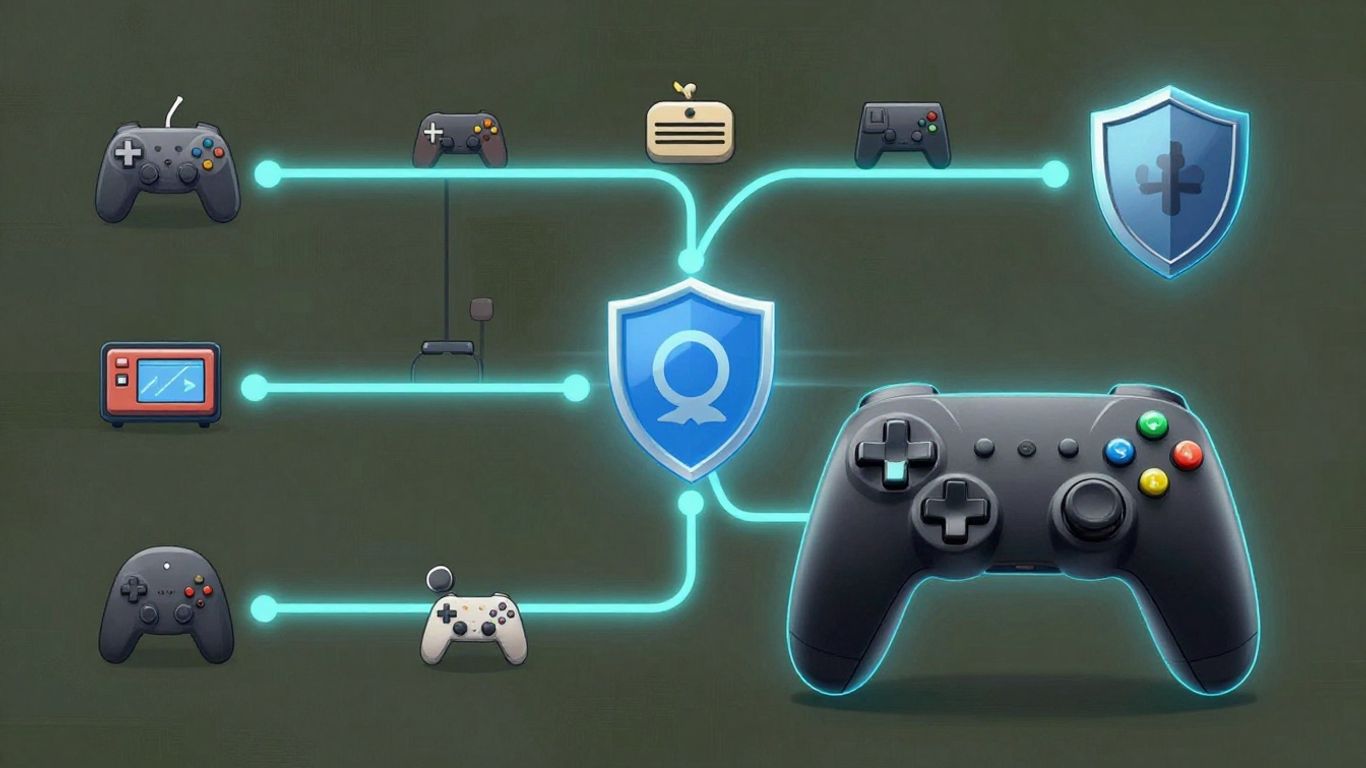
Connecting your Epic Games account to other services or platforms can expand your gaming experience, but it also introduces a layer of permissions that need careful management. Understanding how these links work and who has access to what is key to keeping your account secure and your gaming environment safe, especially for younger players.
Securing Third-Party Account Connections
When you choose to link external accounts, like social media profiles or other gaming services, to your Epic Games account, you’re essentially granting them permission to interact with your Epic profile. This can be convenient for single sign-on or sharing achievements, but it’s important to know what data is being shared. The "Sign in with Epic" feature is designed to manage these connections, offering a way to control which third-party services can access your Epic Games information. Regularly reviewing these linked accounts through your Epic Games account settings is a good practice. You can see a list of all connected services and revoke access at any time if you’re no longer using a particular service or feel uncomfortable with the connection.
Approving External Account Access Requests
For younger players, or when setting up new connections, Epic Games often requires parental approval for external account access. This means that if a child attempts to link a new service or use their Epic login on an unfamiliar platform, a notification might be sent to the parent or guardian. This system acts as a safeguard, allowing parents to be aware of and approve or deny these requests. It’s a way to ensure that children aren’t granting permissions to services without adult supervision. The process typically involves receiving an email with details about the requested access, allowing parents to make an informed decision.
Understanding Sign-In With Epic Safeguards
The "Sign in with Epic" feature is more than just a convenience; it’s a security measure. When you use this option on other websites or apps, it streamlines the login process while also providing a central point for managing permissions. Parents can specifically use this feature to monitor and control when their child’s Epic account is used to sign into external services. By requiring approval for each new connection, it adds an extra layer of oversight. This helps prevent unauthorized access and ensures that the child’s gaming profile and associated data are protected across different platforms. It’s a proactive approach to account security in an interconnected digital world.
Leveraging Platform-Specific Parental Tools
While Epic Games provides a solid set of parental controls within its own ecosystem, it’s smart to remember that your child likely plays games on more than just the Epic Games Launcher. Different gaming consoles and devices have their own built-in safety features. Think of these as extra layers of protection that work alongside Epic’s settings.
Integrating Epic Settings with Console Controls
Most major gaming platforms, like PlayStation, Xbox, and Nintendo Switch, offer their own parental control dashboards. These tools let you manage things like screen time, online interactions, and content access directly on the console. It’s a good idea to set up these platform-level controls first, as they often provide a broader scope of restrictions.
For example, on a PlayStation, you can set spending limits for the PlayStation Store, restrict access to certain websites, and even limit how long your child can play each day. Similarly, Xbox has robust family settings that allow you to manage friend requests, communication, and content ratings. Nintendo Switch also offers a dedicated parental controls app for smartphones that syncs with the console.
The key is to make sure the restrictions you set on the console complement, rather than conflict with, the settings you’ve configured within your child’s Epic Games account. If you’ve limited chat features on Epic, you’ll want to ensure similar restrictions are in place on the console itself to avoid confusion or loopholes.
Maximizing Protection Across Gaming Platforms
To get the most out of these tools, consider creating a unified approach. This means looking at what each platform offers and applying the strictest reasonable settings across the board. Here’s a quick look at what you might find:
- Content Ratings: Set the highest acceptable age rating for games and apps on each platform.
- Communication Limits: Restrict who your child can talk to, whether it’s voice chat, text chat, or even friend requests.
- Spending Controls: Set daily or monthly spending limits for digital purchases on each platform’s store.
- Playtime Limits: Define daily or weekly time limits for gaming sessions.
Complementary Settings for Enhanced Safety
It’s also worth noting that some games, even those launched through Epic, might have their own internal settings. For instance, a game might have specific chat filters or social features that are separate from Epic’s general controls. Always check the individual game’s settings menu for any additional options.
Remember that parental controls are not a one-time setup. Children grow, their gaming habits change, and new games and features are released regularly. It’s important to revisit these settings periodically to make sure they still fit your family’s needs and your child’s maturity level. Open conversations about why these limits are in place can also go a long way in helping your child understand and respect the boundaries you’ve set.
Monitoring and Adjusting Gaming Habits
Keeping an eye on how much time your kids spend gaming and what they’re doing online is a big part of making sure their experience is safe and balanced. It’s not just about setting up controls and walking away; it’s an ongoing process. Think of it like tending a garden – you plant the seeds (set the controls), but you still need to water and weed regularly to keep things healthy.
Utilizing Playtime and Activity Reports
Epic Games offers tools that can give you a clearer picture of your child’s gaming habits. These reports can show you how much time is being spent in games and what activities are happening within the Epic ecosystem. This information is super helpful for spotting patterns that might be concerning or just for understanding what your child enjoys.
- Playtime Reports: These usually give you a weekly summary of how long your child’s account has been active. It’s a straightforward way to see if gaming is taking up a lot of their free time.
- Account Activity Reports: These can highlight changes to the account, like new friends being added or significant interactions. This helps you stay aware of who your child is connecting with online.
- Purchase History: Regularly checking this can prevent surprise charges and ensure that any spending aligns with your family’s budget and rules.
Fostering Open Communication About Gaming
Setting up controls is one thing, but talking to your kids about why those controls are there is another. Open conversations can build trust and help children understand the importance of online safety and responsible gaming. When kids feel they can talk to you without immediately getting in trouble, they’re more likely to share if something makes them uncomfortable online.
It’s easy to get caught up in the technical side of parental controls, but remember that the most effective tool is often a good relationship with your child. When they know you’re looking out for them and not just trying to restrict them, they’re more likely to cooperate and be open about their online experiences.
Regularly Reviewing and Adapting Restrictions
What works today might not work next month. Kids grow, their interests change, and new games or features become popular. It’s a good idea to schedule regular check-ins to review the parental controls you’ve set up. Maybe your child has shown they can handle more freedom in certain areas, or perhaps a new game requires different settings.
Here’s a simple way to approach this review process:
- Schedule a Time: Set a recurring reminder, maybe once every few months, to sit down and look at the settings.
- Discuss with Your Child: If they are old enough, involve them in the conversation. Ask them how they feel about the current restrictions and if they have any suggestions.
- Check for Updates: See if Epic Games or the specific games your child plays have introduced new parental control features.
- Adjust as Needed: Make changes based on your child’s maturity, your family’s comfort level, and any new information you’ve gathered.
Differentiating Epic Games Marketplace and Developer Controls
It’s easy to get Epic Games mixed up, especially when you hear about games like Fortnite or Rocket League. But there’s a difference between the place where you buy games and the company that makes them, and knowing this helps when you’re setting up controls for your kid’s account.
Understanding Marketplace Purchase Oversight
The Epic Games Marketplace is basically the store. It’s where you can buy games, add-ons, and other digital stuff directly from Epic. Think of it like a digital mall. When your child makes a purchase here, it shows up on your account statement. This is good because you can see exactly what’s being bought and how much is being spent. This direct oversight is a key benefit of using the Epic Games Store for purchases.
Applying Developer-Specific Game Settings
Now, Epic Games also makes games. They have their own studios that create titles. When you’re dealing with a game made by Epic itself, like Fortnite, you can often set controls specifically for that game. These settings might cover things like in-game chat or specific features within that particular game. However, it’s important to remember that these controls are usually just for that one game. They don’t automatically apply to every other game on the Epic Games platform, especially if another company made that game.
Recognizing Limitations of Platform-Wide Controls
This is where things can get a bit tricky. While Epic provides a central place to manage your child’s account and set some general rules, not all games will follow those rules perfectly. A game made by a different developer, even if bought through the Epic Marketplace, might have its own unique settings or ways of handling things like communication or in-game purchases. You might need to look into the specific game’s own settings, separate from the main Epic account controls, to manage certain aspects. It’s like having a main house key, but some rooms have their own special locks.
Here’s a quick look at what you can typically control:
- Epic Games Store Purchases: You can see and manage all transactions made through the Epic Games Store. This includes games and any downloadable content.
- Epic-Developed Games: For games like Fortnite, you can often adjust settings related to in-game chat, friend requests, and content ratings directly within the game’s options or through your Epic account settings.
- Third-Party Games: Controls for games made by other companies might be limited to what Epic’s platform offers. You may need to check the game’s individual settings or the developer’s website for more specific options.
It’s always a good idea to check the age ratings and any available parental guidance information for each game your child wants to play. This helps you understand what kind of content and interactions to expect, regardless of who made the game.
Wrapping Up Your Parental Controls
So, we’ve gone over how Epic Games lets you manage who your kids talk to online, what they can buy, and what games are okay for them to play. It’s not just about setting things up once, though. Remember to check in regularly, see how things are going, and make changes if you need to. Talking with your kids about why these rules are in place is a big part of it too. By using Epic’s tools and keeping the lines of communication open, you can help make sure your child has a fun and safe time gaming.
Frequently Asked Questions
What is a ‘Limited Account’ or ‘Cabined Account’ on Epic Games?
When a player tells Epic Games they are under 13 years old (or the age where they can agree to things online in their country), their account becomes ‘Limited’ or ‘Cabined.’ This is a safety feature. It means some features, like chatting with others or buying things, are turned off until a parent or guardian gives permission. They can still play games they already have.
How do I set up parental controls for my child’s Epic Games account?
To set up controls, log into your own Epic Games account on their website or launcher. Go to ‘Settings,’ then find ‘Parental Controls.’ You’ll need to create a special PIN code. After that, you can adjust settings for things like who your child can talk to, how much they can spend, and what kind of games they can play.
What can parents control with Epic Games parental settings?
Parents can control a lot! You can decide who your child can add as friends, whether they can use voice or text chat, and if they need your PIN to buy things. You can also set limits on what age-rated games they can access. It helps make sure they’re playing safely and spending wisely.
What is ‘Sign in with Epic’ and how does it help protect kids?
‘Sign in with Epic’ lets kids use their Epic Games login to access other apps or websites. Parents can get a notification when this happens and choose to approve or deny it. This way, parents know where their child is using their Epic account and can protect their information.
Can I control my child’s spending on Epic Games?
Yes, you absolutely can! Epic Games lets you set up spending limits and require a PIN for any purchases. This means your child can’t buy things without your okay. There’s also an automatic daily spending limit for accounts that show the player is under 13, which adds another layer of protection.
Do I need to set up controls on my game console too?
It’s a really good idea! While Epic Games has its own safety features, consoles like PlayStation, Xbox, and Nintendo Switch also have their own parental controls. Using both sets of controls – the ones on Epic Games and the ones on your console – gives you the best protection for your child across all their gaming.